

Jekyll-Markdown: Add voting to a Blog Post - How to Part 2 - Jekyll Post
web jekyll web markdown azurefunction survey voting state
The previous post covered setting up the Azure Function and Blob Storage needed to add voting to a Jekyll Markdown Blog Post. This post covers the changes needed in the Jekyll Blog Post itself to include voting. The required code is now modularized in that you only need to enter the voting options in a file, include some scripts and embellish some configuration files with values that reflect the Azure Function qnd Azure Blob Storage configurations.
1. Clone the repository
Clone the repository djaus2/VotesJekyllMarkdown
- The folder
VotesBlogSite\VotesBlogcontains the Jekyll Blog Post code needed to include voting in a blog post.- The file
_posts/2025-11-17-Voting-with-Jekyll-Markdown.mdcontains the blog post code itself with the voting implementation.
- The file
- Use this as a starting point for your own implementation.
- You will need to apply some configuration settings to make it work for your own Azure Function and Blob Storage.
- For now just check that the blog site builds as-is.
bundle exec jekyll build
Assuming you are set up for Jekyll, or install it:
Jekyll Quickstart
With a few configuration settings, the voting will work in the blog post as-is. 😀
Note: There is a second set of files in the folder
BlogFilesfor blog site purposes that only contains the necessary files in required folders that are needed to be added to an existing Jekyll site including the sample post to implement voting.
2. Voting options
The existing voting options are defined in the file _data/vote_options.yml.
Example contents:
- - 'option1'
  - 'The quick brown'
- - 'option2'
  - 'Jumps over the lazy dog'
- - 'option3'
  - 'To be, or not to be:'
- - 'option4'
  - 'That is the question'
- - 'option5'
  - 'En un lugar de la Mancha'
- - 'option6'
  - 'Once upon a time'
_data/votingoptions.yml
Each voting option is defined by two values in a list:
- The first value is the unique option ID used by the Azure Function to identify the option and is passed to Storage.
- The second value is the text displayed for the option in the blog post.
You can add, remove or modify the voting options as you wish. Just ensure that each option has a unique ID.
3. Voting settings in _config.yml in the blog post
Various configuration settings used by the blog post are now defined in ONE location _config.yml in the blog site.
Added at the bottom of the file :
gAPI: "emoji"
gSURVEY_ID: "SURVEY_ID"
gYOUR_FUNCTION_PROJECT_NAME: "YOUR_FUNCTION_PROJECT_NAME"
gYOUR_FUNCTION_KEY: "YOUR_FUNCTION_KEY"
gYOUR_STORAGE_CONTAINER_NAME: "YOUR_STORAGE_CONTAINER_NAME"
gBLOB_STORAGE_CONNECTION_STRING: "BLOB_STORAGE_CONNECTION_STRING"
gADMIN_SECRET: "YOUR_ADMIN_SECRET"
gLOCALHOST_PORT: "7050"
Insert your Function and Blob Storage configuration values accordingly. This avoids having to modify the blog post code directly.
Note: These settings correspond to those set up in the previous post Jekyll-Markdown Add voting to a Blog Post - How to Part 1 - Azure Function and Blob Storage.
- Not all of these settings are actually required here in the Blog site, especially those related to Blob Storage, but they are included for completeness.
- Only focus upon ADMIN_SECRET, needs to be same as that in in The Function project in
Properties/launchSettings.json - Set the
gYOUR_FUNCTION_PROJECT_NAMEto the name of your Azure Function project.
- Only focus upon ADMIN_SECRET, needs to be same as that in in The Function project in
- Specifically, for local hosting of the Azure Function during development, the Function key is not needed but the the local host port is needed instead.
- The default configuration of the blog site is to run the Function locally, ie
localhost:7050. Deployment of the Function to Azure wil be covered later.
4. Voting in a blog post example
To include voting in a blog post, you simply need to include the voting scripts and the voting options include file in the blog post markdown file. For example, in the file _posts/2025-11-17-Voting-with-Jekyll-Markdown.md:
- Set up your voting options in data/vote_options.yml as described above.
- Include the voting in the blog post markdown file:
{% assign api_url = 'http://localhost:' | append: site.gLOCALHOST_PORT | append: '/api/' | append: site.gAPI %}
{% include votes.html  id=site.gSURVEY_ID code=site.gYOUR_FUNCTION_KEY api=api_url key=page.url %}
Note: Because the function is running locally, the Function Key is immaterial here.
- Inserting the above results in the following voting interface being displayed in the blog post
Jekyll-Markdown-Add_voting_to_a_Blog_Post_-_How_to_Part_2_-_Jekyll_Post-webwhen teh site is built and served locally:
Try it again bundle exec jekyll serve and go to the blog post in a browser and you will see the voting thus:
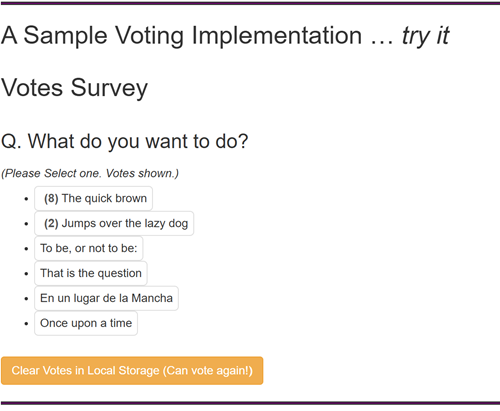
Tap and rotate phone to enlarge.
The Voting interface in the blog post, withcurrent tallies showing. 😀
5. About Clearing Votes
Note that you can only vote once. For development purposes there is though a [Clear Votes] button which allows you to re-vote. It does not clear votes from the Blob Storage.
There is a PowerShell script for development purposes to clear the blob storage votes.
scripts/resetCounter.ps1
.\scripts\resetCounter.ps1 -Secret "ADMIN_SECRET" -Extent all -Code "FUNCTION_KEY"`
Running locally, the Function key is again ignored withe this implementation.
Both of these features would be removed for a production implementation.
6. Deploying the Azure Function to Azure
This is not a quantum-leap!
- Publish the Azure Function project to Azure from Visual Studio or VS Code.
- Update the configuration settings in the blog site’s
_config.ymlfile to reflect the deployed Function settings:- Set
gYOUR_FUNCTION_PROJECT_NAMEto the name of your deployed Azure Function. - Set
gYOUR_FUNCTION_KEYto the Function key obtained from the Azure portal for your deployed Function.- As covered in the previous post, you can find this in the Azure portal by navigating to your Function App > Functions > Your Function > Manage > Function Keys.
- Remove or ignore local host port setting as it is no longer needed.
- Set
- Change the
api_urldefinition in the blog post markdown file to use the deployed Function URL. For example:
{% assign api_endpoint = site.gAPI | default: 'emoji' %}
 {% assign api_url = 'https://' | append: site.gYOUR_FUNCTION_PROJECT_NAME | append: '.azurewebsites.net/api/' | append: api_endpoint %}
 {% include votes.html     id=site.gSURVEY_ID     api=api_url     code=site.gYOUR_FUNCTION_KEY     key=page.url%}
‘4. Rebuild and serve the Jekyll blog site. Then test the voting functionality in the blog post to ensure it works with the deployed Azure Function.
bundle exec jekyll serve
😀 😀 😀 !
Conclusion
So it is not hard to add voting to a Jekyll Markdown blog post using an Azure Function and Azure Blob Storage. The modularized approach allows for easy configuration and integration into existing Jekyll sites.
A Further Possibility
It would not be hard to implement Likes votes on a blog post in a similar manner clicking on thumbs up 👍 emoji. Just one option for voting. Ps Leave reply if you’d like that.
| Topic | Subtopic | |
| Next: > | AthStitcher | Further Discussion |
| This Category Links | ||
| Category: | Web Sites Index: | Web Sites |
| Next: > | Markdown | A Script to Paste an Image |
| < Prev: | Jekyll-Markdown | Add voting to a Blog Post - How to Part 1 - Azure Function and Blob Storage |


